
One booking. A clear invitation.
Video Call Scheduling gives the host a local calendar and prepares an invitation with the time, room code and joining instructions. You review it and send it from your own email account.
Choose the right kind of session.
Cam2Cam: one host and up to four guests — five people in total.
Pro Online Learning: one presenter and up to six learners, with space for shared lesson material.
Before you begin.
Have your guests’ names and email addresses ready. Everyone joining needs Quantaflex installed and activated on an Apple Silicon Mac or a Windows 10/11 64-bit computer.
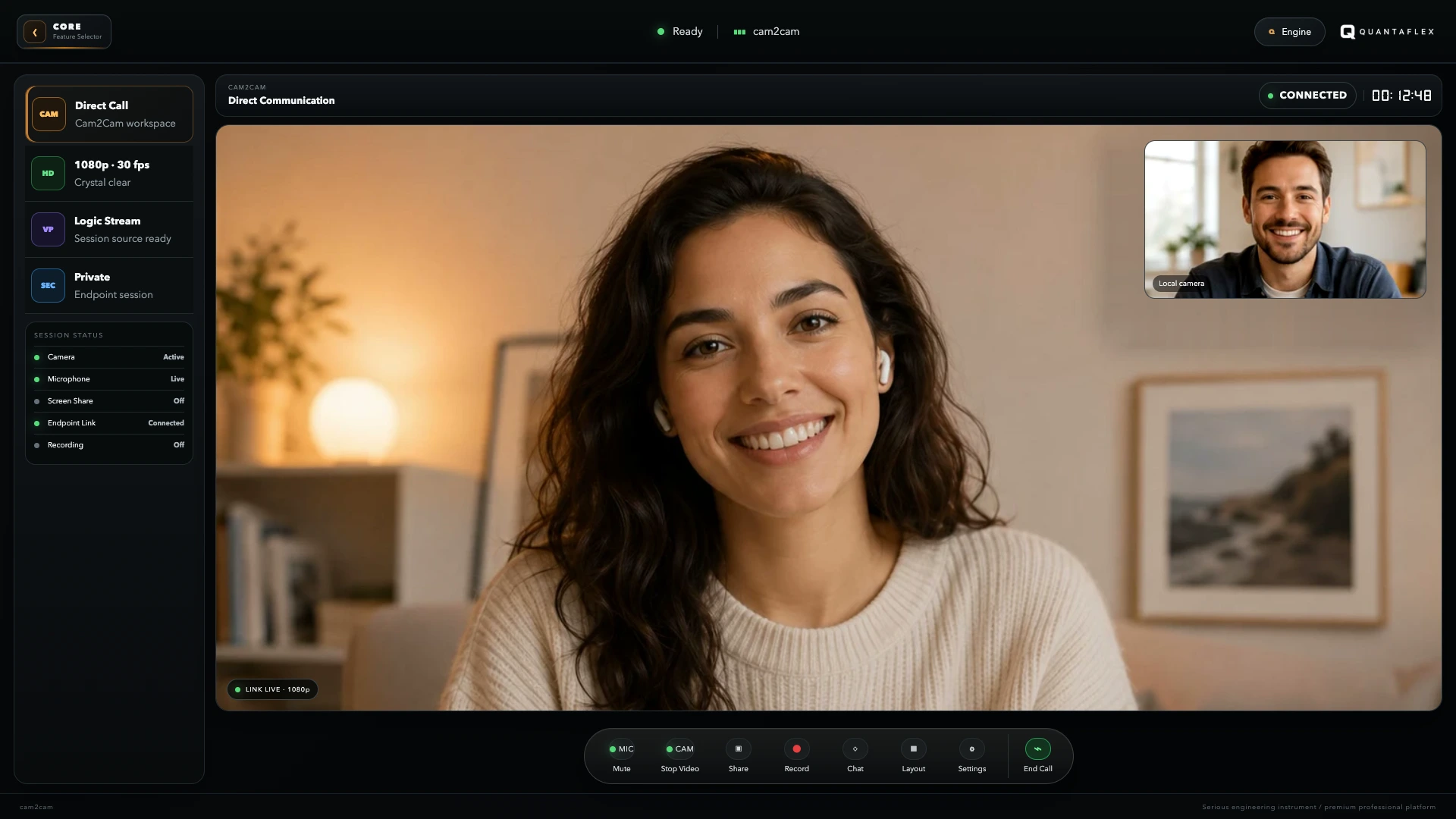
1. Create your booking.
- Open Video Call SchedulingChoose it from Quantaflex’s home screen. Under Invites from, enter your own host email address and select Gmail, Outlook or Other for your mail app.
- Choose a date and call typePress + New booking, pick a day on the calendar, then choose Cam2Cam or Pro Online Learning.
- Set the time and lengthThe Time field uses your computer’s local time zone. Choose Guests’ time if your guests are elsewhere; check the converted time before continuing. Choose the session length.
- Add the people and purposeEnter a title, each guest’s name and email, and an optional note. The note goes into the invitation, so use it for preparation or anything guests should bring.
- Press Create bookingQuantaflex saves the booking and opens the invitation preview. An internet connection is needed to reserve the room.
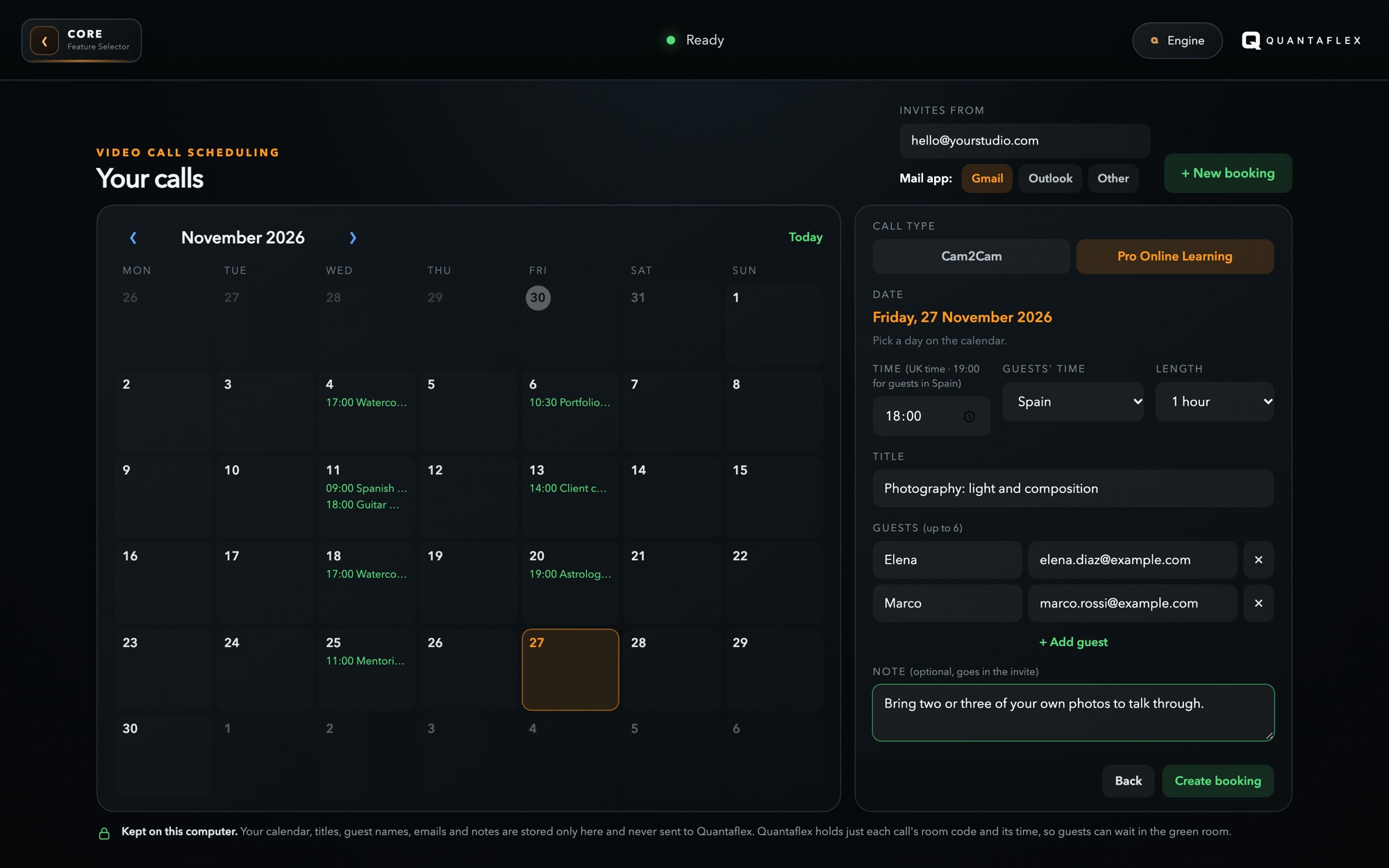
2. Check it, then send it.
Read the invitation preview. Check the guest addresses, date, time zone, call type and room code. The invitation explains how to join and includes your note.
- Open in Gmail, Outlook or your mail appQuantaflex prepares the message in your chosen mail service. Check the sender account and press Send in that service. Creating the booking alone does not send an email.
- Or use Copy invitePaste the invitation into your preferred message or email and send it yourself.
- Add a reminderThe host can choose Google or Apple / Outlook below the preview. Google opens an add-event page; Apple / Outlook creates a calendar file to import. Guests can use the Google Calendar link in their invitation.
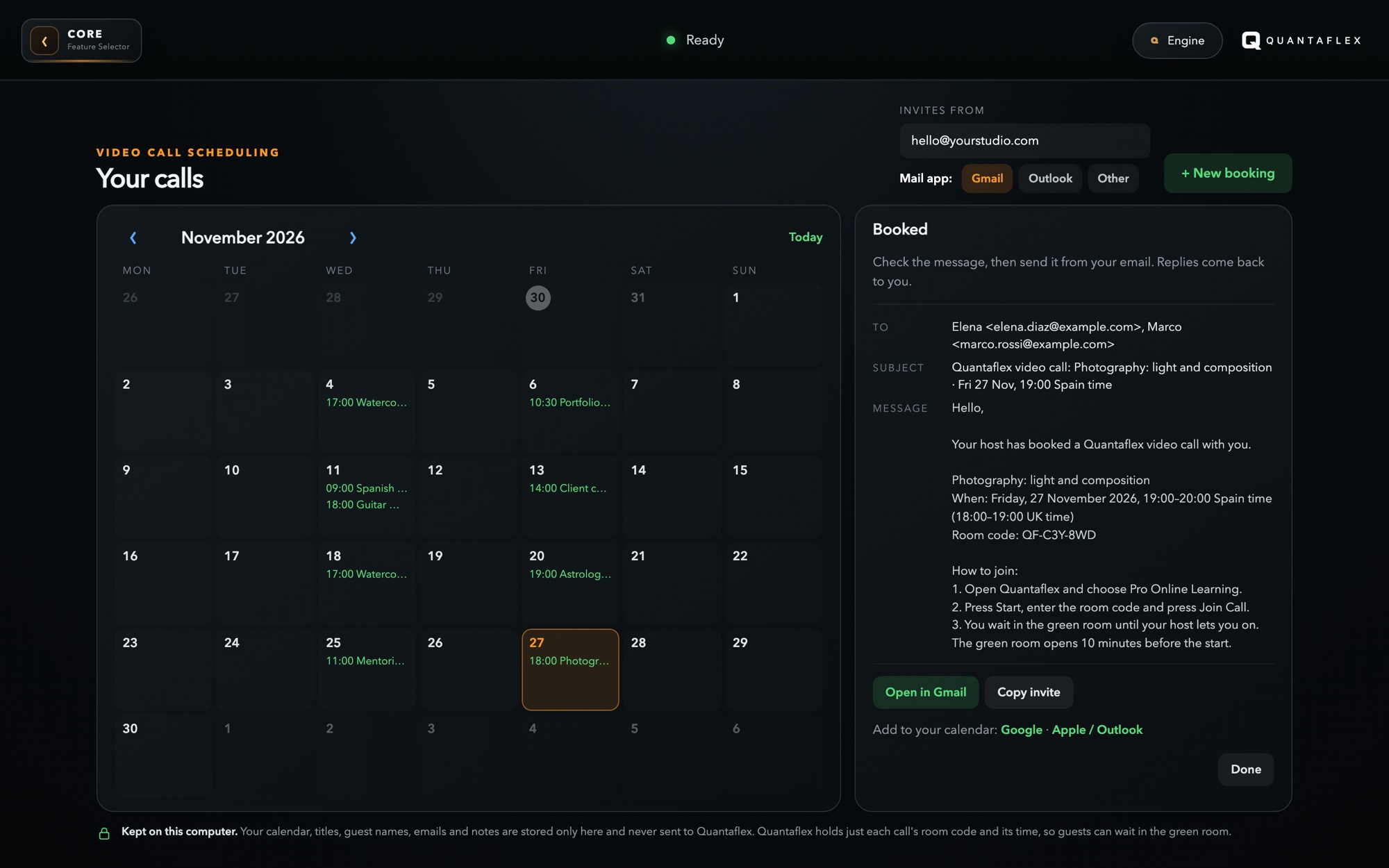
3. Meet in the booked room.
Start the booked call
Return to Video Call Scheduling and select the booking’s day. Its Start Call button becomes available when the green room opens, 10 minutes before the start. Use that booking’s button to enter as host.
Use the invitation’s code
Open the call type named in the invitation. Press Start, enter the room code and press Join Call. Check camera, microphone and background in the green room.
Let everyone in
The host opens the Green Room controls and admits the waiting guests. Learners should keep a working camera on while they are on stage.
Your calendar, kept on this computer.
Quantaflex’s calendar shows bookings you create on that computer. An invitation someone sends you does not automatically appear there. Keep the invitation and room code, and add a reminder to Google Calendar if you wish.
Booking titles, guest details and notes stay on your computer until you choose to share the invitation through your mail or calendar service. Quantaflex’s call service reserves the room and its time; it does not store your local guest list or notes.
- Need to change the booking?Open its day and choose Change. Save the revised details, then send the updated invitation so guests have the current time and joining information.
- Need to cancel?Choose Cancel and confirm with the second press. The room code stops working. Send the cancellation message to let your guests know.
Useful questions before the call.
Do guests need Quantaflex installed?
Yes. Guests need Quantaflex installed and activated on a supported computer. The invitation includes the room code and tells them whether to open Cam2Cam or Pro Online Learning.
Does creating a booking send the invitation automatically?
No. Review the invitation, open it in Gmail, Outlook or your mail app, then send it there. You can also use Copy invite and paste it into a message.
Why is an invitation I received missing from my Quantaflex calendar?
Quantaflex’s calendar stores bookings you create on that computer. A received invitation does not appear there automatically. Use its Google Calendar link for a reminder, and keep the room code to join.
When can guests enter the green room?
The green room opens 10 minutes before the booked start. Guests check their camera, microphone and background, then wait for the host to admit them.
Quantaflex 1.5.7 · Apple Silicon Macs (M1 or later) · Windows 10/11, 64-bit. One activation unlocks all six modules. Read the user manual →